
Create an account
How to create an account on EXFO Exchange? You need to create an account to start using EXFO Exchange. You can create your account via the web, via the mobile application or within Fast Reporter 3.10 and over.
With the Web App
1. First, navigate to the Exchange login page.

2. Then, enter the email address that you want associated with your account. Preferably, use your professional address.

3. On the next screen, enter your first and last name along with a secure password. Rest assured, we don’t store your personal information in any of the data collected through the app.

4. Then define the name of your organization. This organization will serve as the central hub for your work, where all activities take place.
*Note that if you are a member, you need to be invited to an organization first in order to join it with an Exchange account.

- Finally, you can create your first workspace to get started. You will be able to create as many workspaces as you want afterwards.

You can rename your organization at any time from your account.
With the Mobile app
Note that you need to be invited by the Administrator to access your workspace. Once someone invites you, you will receive a confirmation email with a link to your dedicated space.
- First, download and install EXFO Exchange from your Apple store or Google Play store.

2. Choose the Create an account option at the bottom.
*Note: The “Continue without an ID” option is available when you are unable to connect to the internet, but it has limited features.
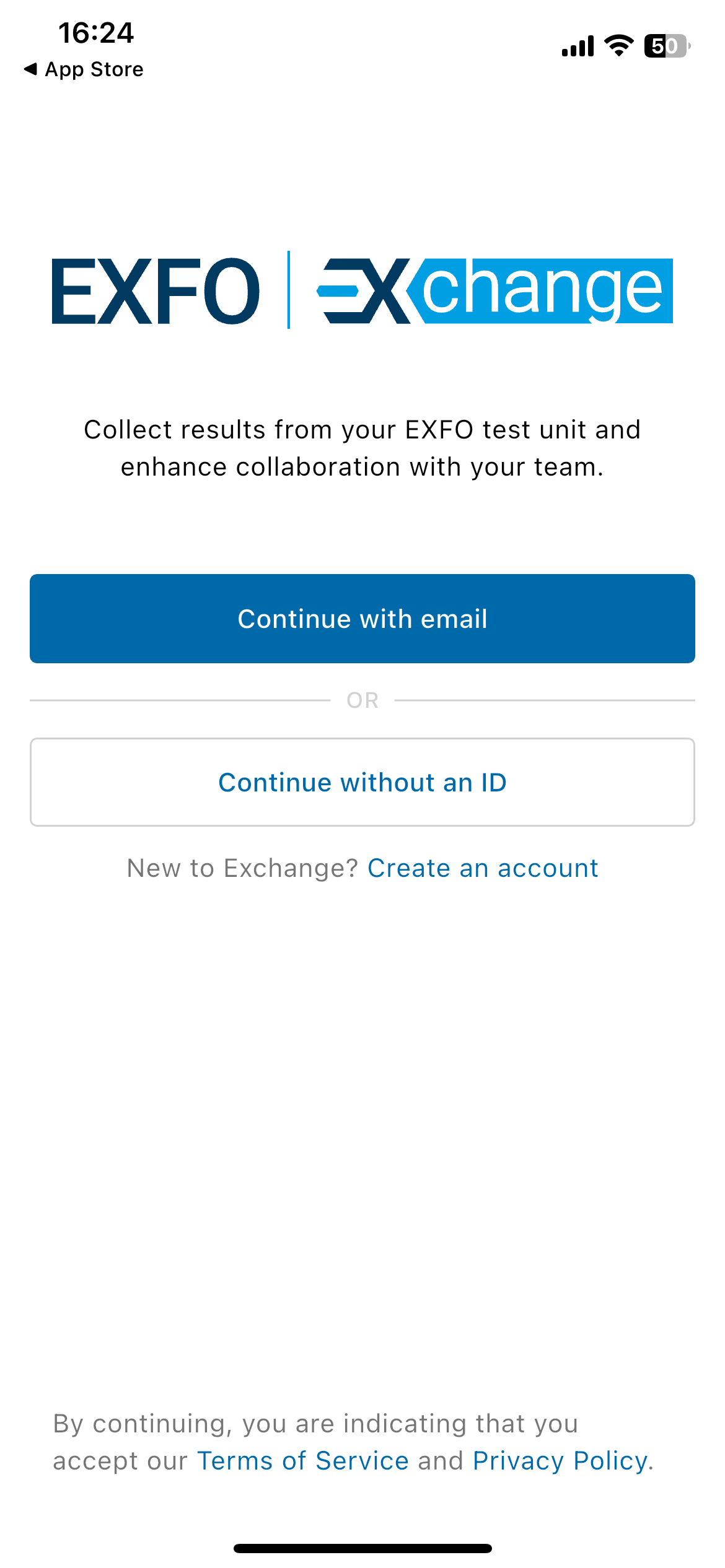
- If you have already been invited to multiple organizations or workspaces, you will be prompted to choose one before entering the app.
*You will be able to switch between organizations & workspaces once inside the app

4. You will be redirected to the Home page when your sign up is completed.
If you create your account before being invited, an organization with your name will be created by default once your account is set up.
With Fast Reporter 3.10 and over

1. First, go to the Cloud tab of Fast Reporter 3.
2. On the top left, click on the “Login” action button. A modal should open.
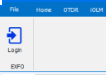
3. Click in “Sign in with EXFO Exchange“.
4. Follow the instructions in the Sign up dialog.
5. An organization will be automatically created when your sign up is completed.
All set ! You can now start using EXFO Exchange.
On this page